


 6 hours ago
1
6 hours ago
1
You don't need a 4K webcam. Well, almost nobody needs a 4K webcam, but you probably don't even want one — or couldn't use one, even if you wanted to. If you're not a professional streamer or some other type of camera-based content creator, a 4K webcam is not going to do you much good: even in 2026, most video conferencing apps, such as Google Meet, Microsoft Teams, and Zoom cap your outgoing stream at 1080p or lower. There's no reason to spend hundreds on one of the best webcams around if nobody is even going to see you in all your ultra-high-res glory.
Maybe you don't need a 4K webcam, but is a 2K webcam a good compromise? There aren't too many 2K webcams, but a little extra resolution might be just what you need to get a slightly clearer picture without going overboard.
Razer's Kiyo V2 X is a 2K webcam that records video at 1440p / 60 fps (also at 1080p / 60/30/24 fps and at 720p / 60/30 fps). It also features speedy (and somewhat trigger-happy) auto-focus, an 80-degree field of view, built-in microphones, and an integrated physical privacy shutter, and is available now in black, white, and "quartz" (Razer's signature pastel pink color) for $99.99.
Latest Videos From

Design of the Kiyo V2 X
The Kiyo V2 X is the budget-friendly product in Razer's Kiyo lineup, and you can tell immediately by the lack of removable USB cable. The Kiyo V2 X looks very similar to its pricier sibling, the Kiyo V2 — it has the same general design: a slim circle lens attached to a long, rectangular body, atop a fixed L-shaped monitor mount. In fact, it looks almost identical to the Kiyo V2 at first glance, but the differences become clear once you take a closer look.
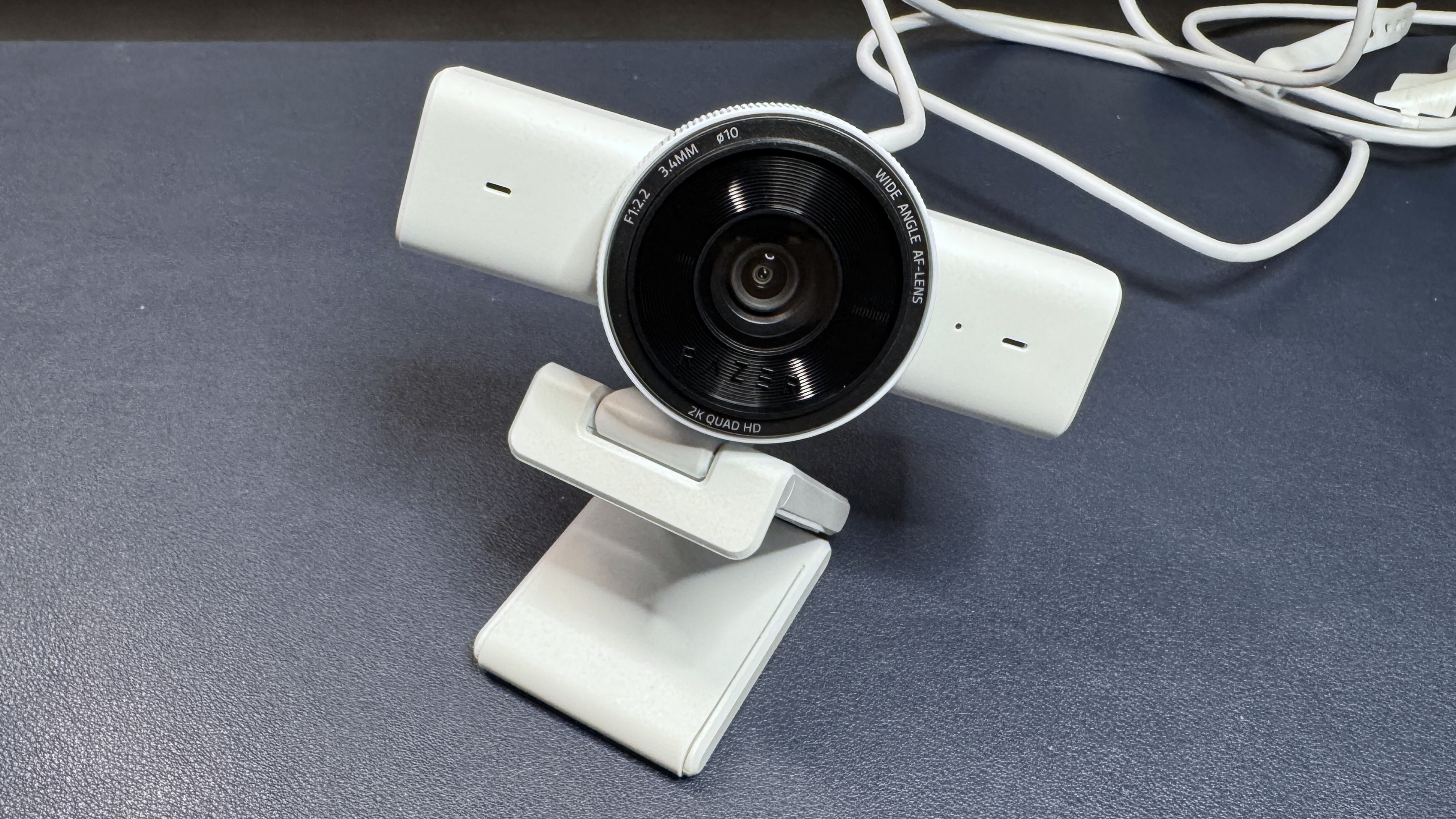
The Kiyo V2 X is slightly smaller than the Kiyo V2, measuring approximately 4.3 inches (109mm) wide by 2.64 inches (67mm) deep, and is 2.7 inches (67.8mm) high. The Kiyo V2, by comparison, measures 4.7 x 2.57 x 2.9 inches (116 x 65.3 x 74mm) — so it's not gigantic compared to the Kiyo V2 X, but it's enough to be noticeable. The difference in weight is what's really significant, however, while the Kiyo V2 X weighs a mere 5.64 ounces (160g) with its cable and mount included (as they are, after all, non-detachable), the Kiyo V2 is a hefty 8.99 ounces (255g) without its cable.
There are other signs the Kiyo V2 X is built cheaper — not only does it have a non-detachable USB-A cable, which is arguably the hallmark of any budget webcam, it also has a smaller glass lens area and a cheaper, lighter-weight textured ring around the lens for opening and closing the privacy shutter.
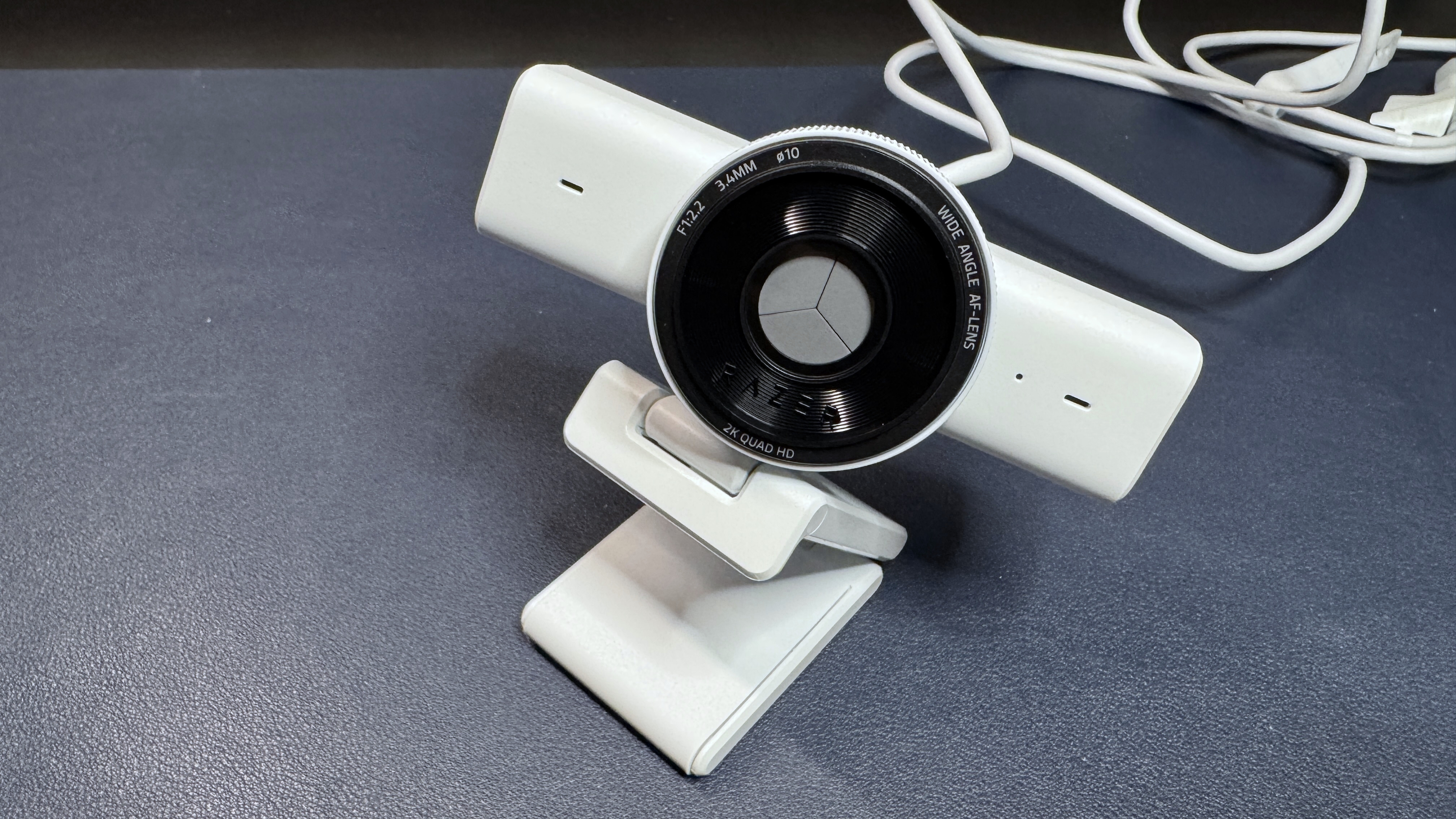
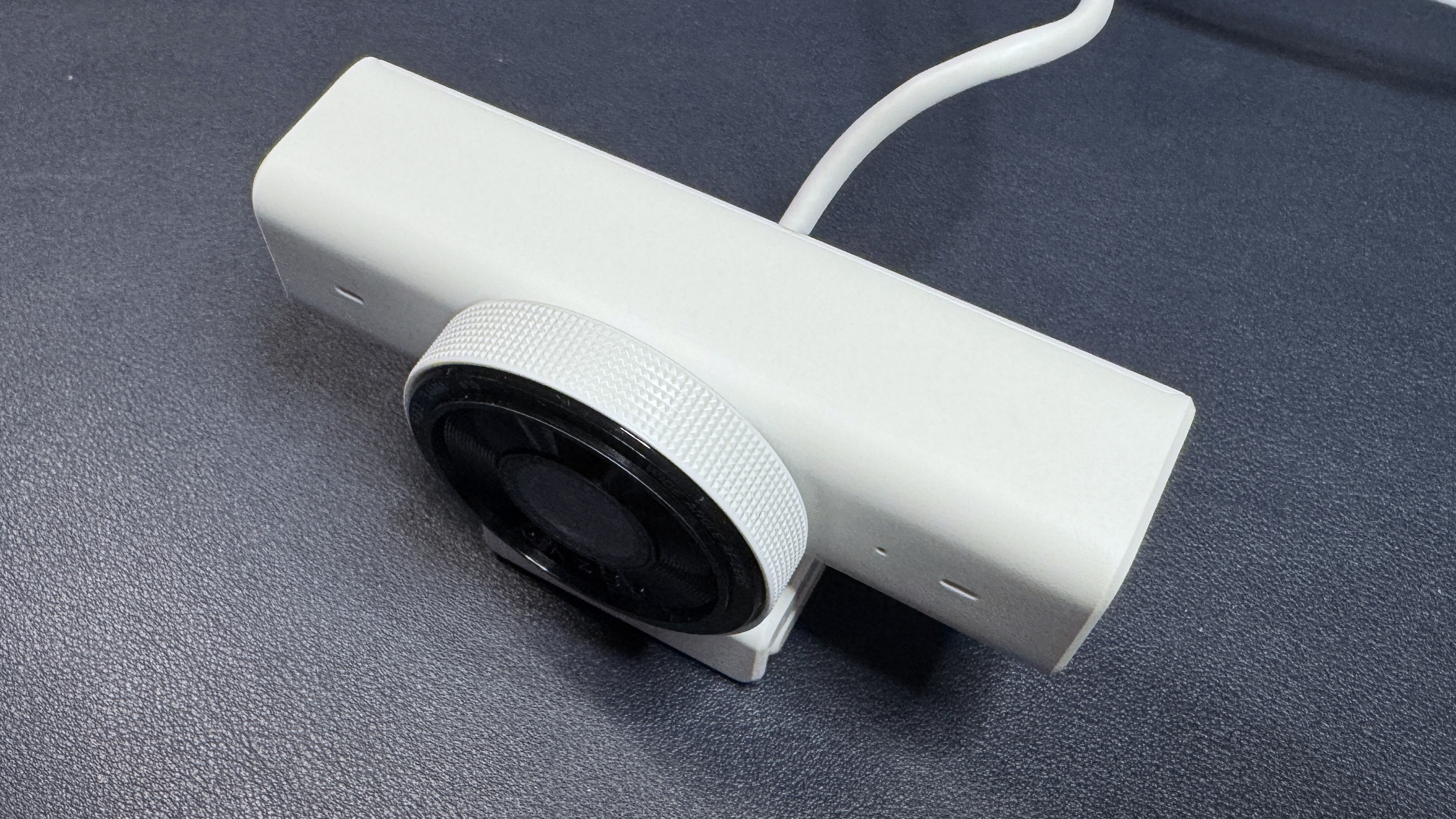
Speaking of which, the Kiyo V2 X does have the same built-in physical privacy shutter as the Kiyo V2 and the Kiyo Pro Ultra, which is a fantastic feature to see in a "budget" model. The privacy shutter is very elegantly implemented — a quick, easy twist of the ring around the camera lens, and the shutter closes (it twists over the camera, under the glass lens, like a camera aperture). I especially like that it's easy to open and close without disturbing the webcam's position too much — you don't have to worry about turning your webcam around or knocking it off your monitor.
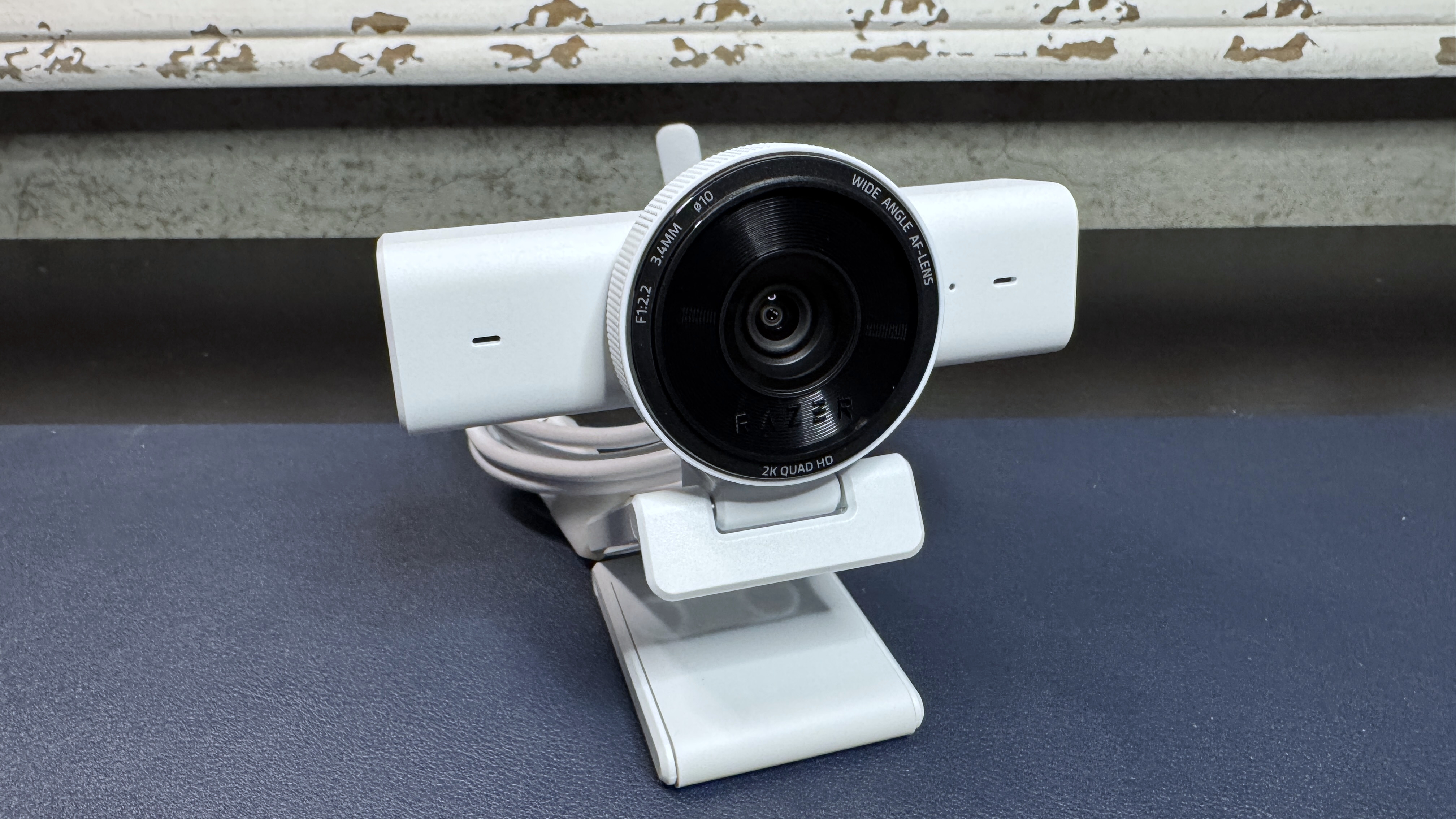
The Kiyo V2 X comes with its accessories permanently attached: a 5-foot (1.5m) rubber USB-A cable with a built-in cable tie, and an L-shaped monitor mount. The cable is fine, if a little stiff — but that's pretty typical of built-in webcam cables. It's a USB-A cable and it supports USB 2.0, which is a relief, as we've seen a couple of webcams recently that require USB 3.0 to even function (including the Kiyo V2, which needs a USB-C port).
The built-in monitor mount is a standard Razer-style L-shaped mount. It has a small lip at the front to secure the mount to your monitor, along with a rubber-coated "foot" that presses against the back of your monitor to keep the webcam in place. The mount allows you to swivel the camera (360 degrees) and tilt (slightly past 90 degrees), and has a 1/4-inch threaded tripod attachment point on the bottom, in case you want to put the Kiyo V2 X on a tripod.
Well-lit Performance
I take all my webcam test photos in my home office, which is a very well-controlled setting that gets zero natural light. For my well-lit test scenario, I have a ring light, a key light, and four desktop monitors (three 27-inch and one 34-inch) in front of me, an arching floor lamp above me, and two desktop lamps behind me, as well as some ambient lighting from my desk and peripherals. For consistency, I take all of my final photos in Windows 11's built-in photo app at 1080p resolution. These individual photos are used as visual references, but my observations come from my overall testing experience with each webcam.
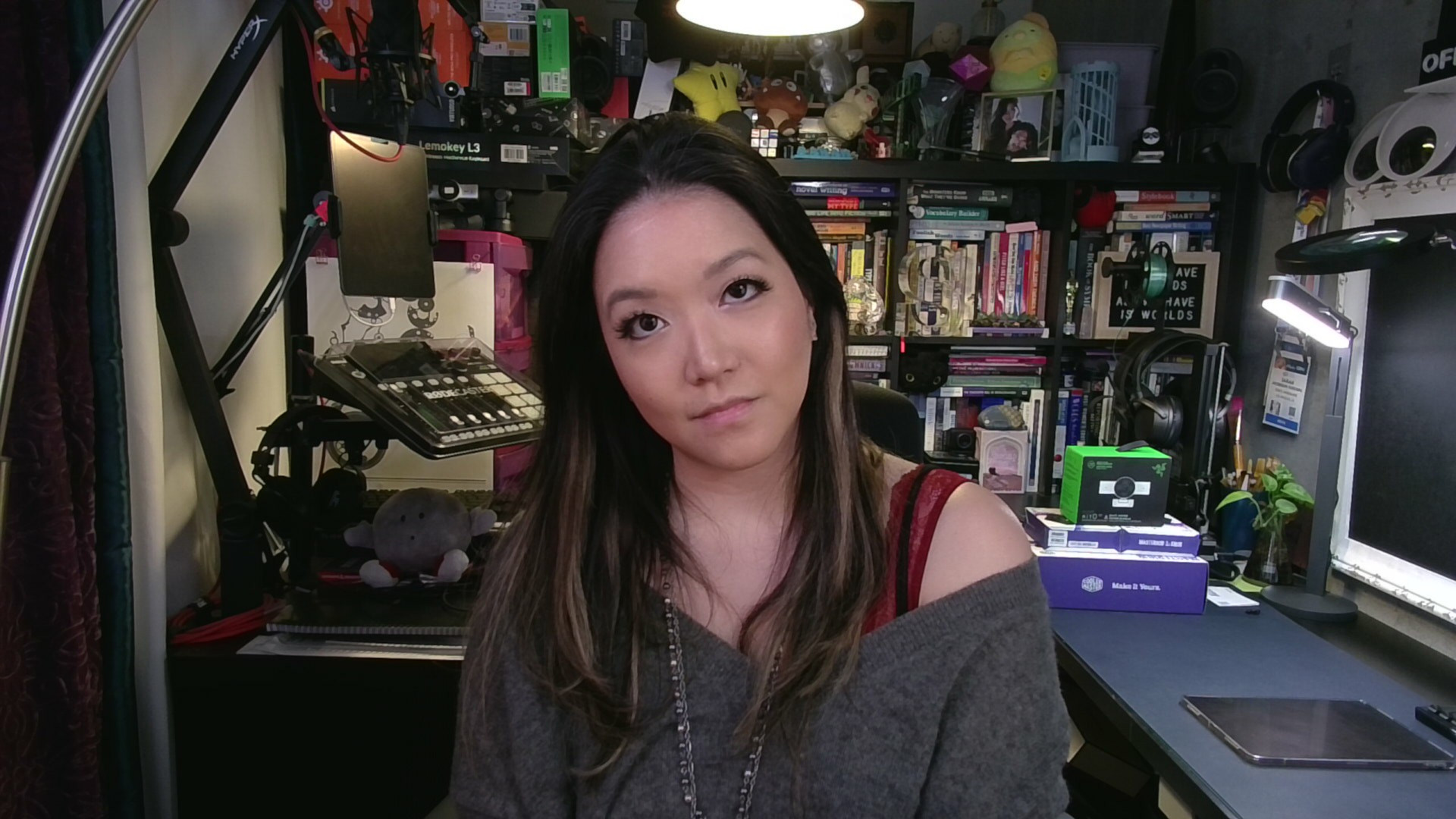
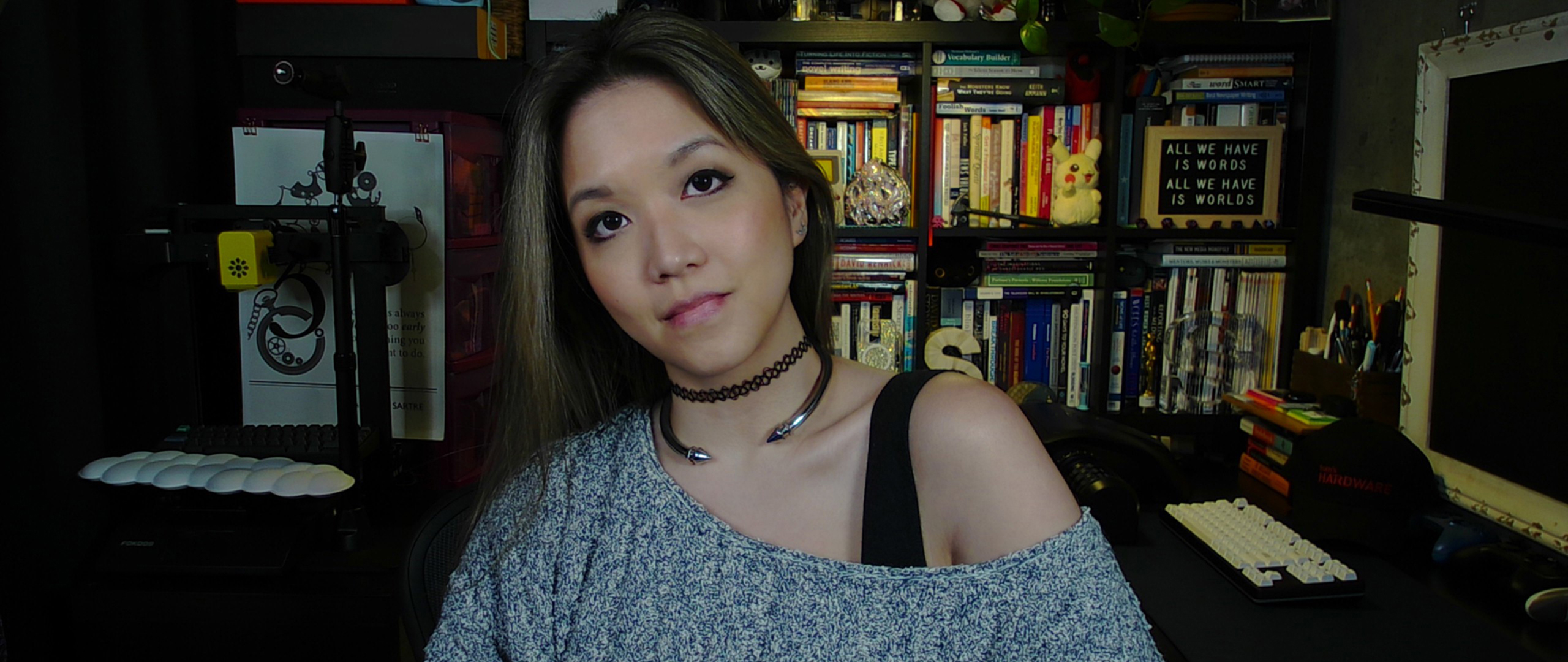
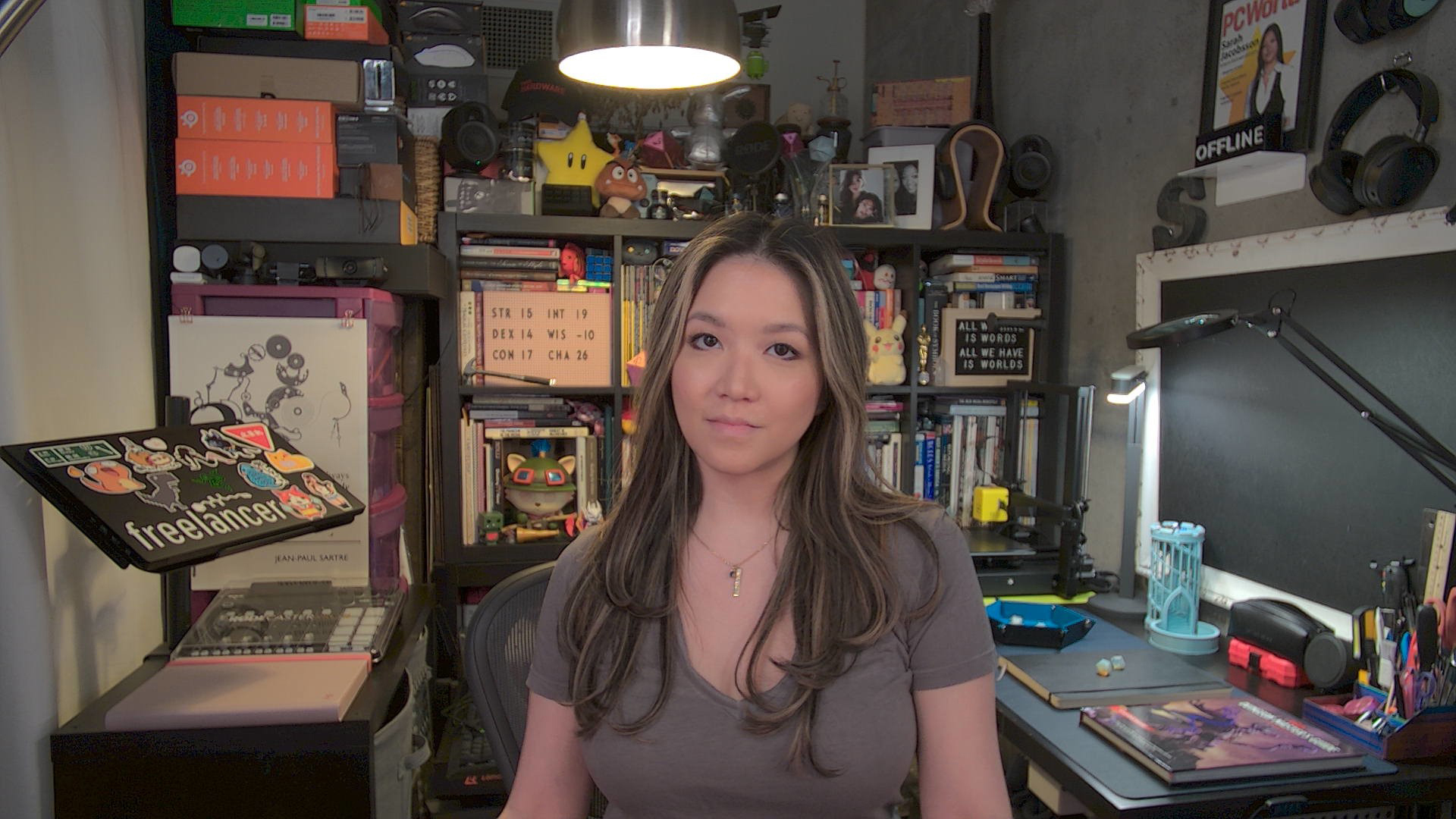
The Kiyo V2 X performed fairly well in our well-lit test scenario. I wasn't blown away by the picture quality, detail-wise, even with the camera set to shoot in 1440p / 60 fps, but the webcam did a good job of balancing exposure quickly and auto-white-balancing to produce a realistic-looking and vibrant palette. I'd be pretty happy with this image for a plug-n-play product if I was meeting with my colleagues or friends over video chat. I think the lack of detail was mostly a function of the Kiyo V2 X's default software features/settings, as I found that turning off the 2D / 3D noise reduction in Synapse 4 and disabling auto-focus gave me much crisper pictures — at least while I was in the Synapse 4 software, anyway.
Low-Light Performance
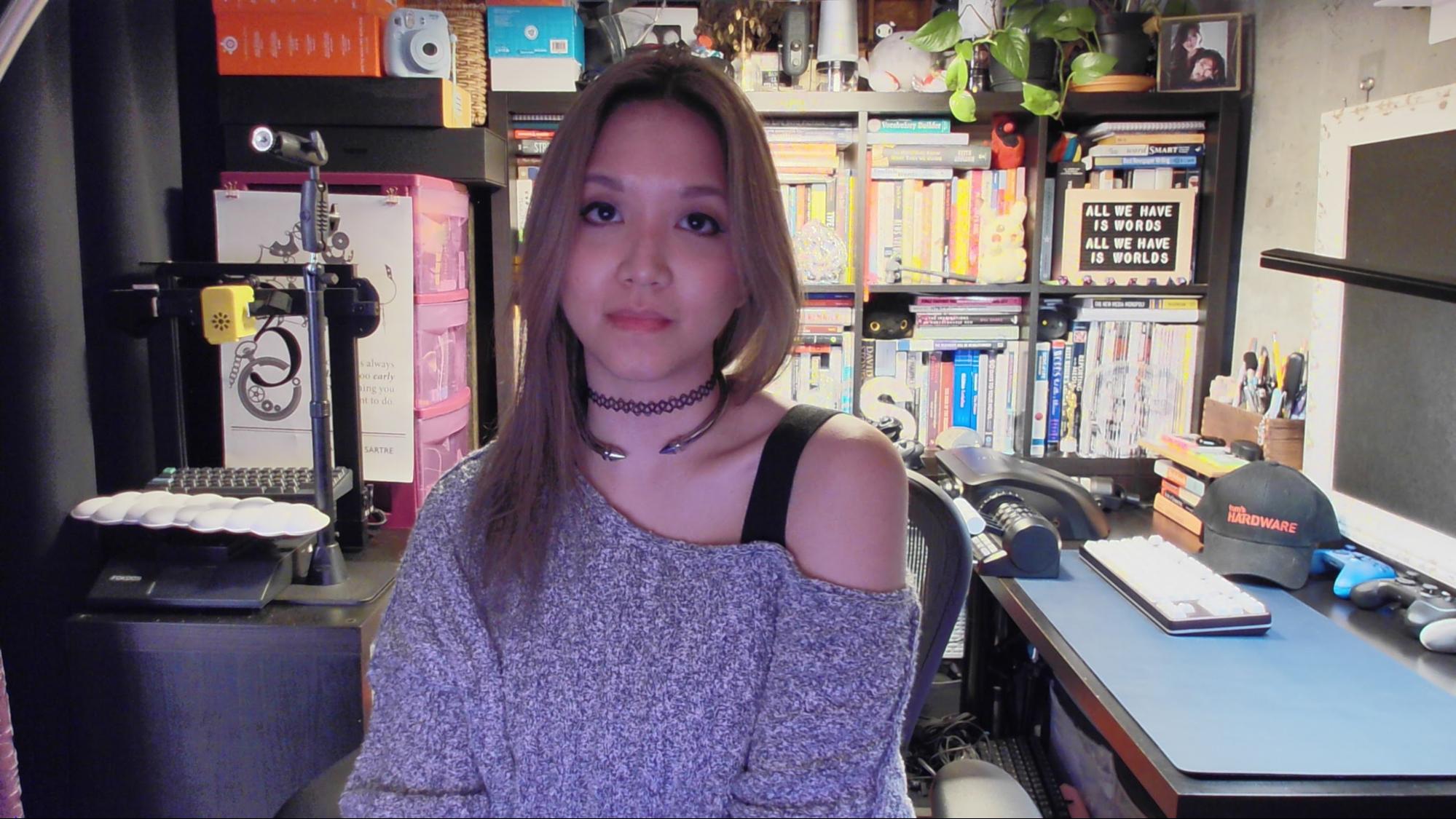
To test the low light performance of this webcam, I turned off all of the lights in my home office except for my primary 34-inch monitor. I took this picture with the Windows 11 camera app taking up half the screen and the default Google homepage taking up the other half.
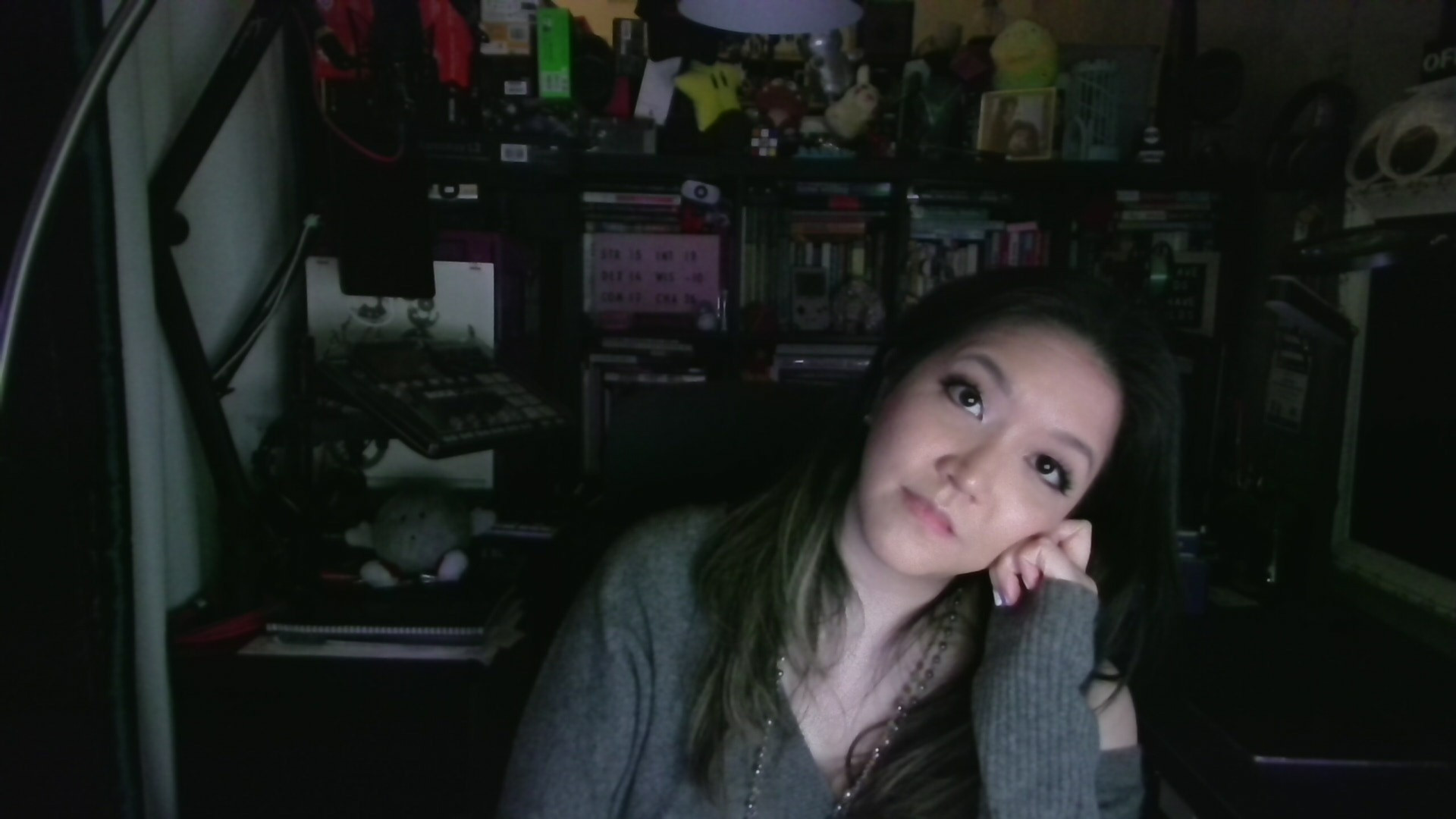


Razer's Kiyo line of webcams has always been pretty impressive when it comes to low-light scenarios, but the Kiyo V2 X didn't perform nearly as well as I hoped it would. It seemed to have trouble balancing exposure, oscillating between way too much and way too little several times until it landed on what was definitely way too little. It was very trigger-happy when it came to both the auto-focus and the auto-exposure — it couldn't seem to keep me in focus at all, even when there was a decent amount of light on my face. Also, any movement — or even no movement — seemed to kick the auto-focus into re-focusing, which resulted in me just... never being in focus.
The lack of detail in the well-lit scenario was definitely exacerbated by less-than-ideal lighting, so I went into Synapse 4 to see if there was something I was missing. Turning off 2D and 3D noise reduction did bring back some detail (it was smoothing over a lot of poorly-lit areas), but, naturally, introduced a lot of noise. But it was really the webcam's inability to stick to focusing on one area that made everything kind of fuzzy.
Overexposed Performance
To test the webcam's performance in an over-exposed setting, I turned off the lighting in front of me, save for my primary 34" monitor. I left the overhead light and the lights behind me turned on. An overexposed lighting scenario is any lighting scenario in which there's a lot of light coming from behind you (e.g., with your back against a window), but I use this particular scenario as I think it's pretty realistic — how often are you really taking on-camera conference calls while sitting up against a window?

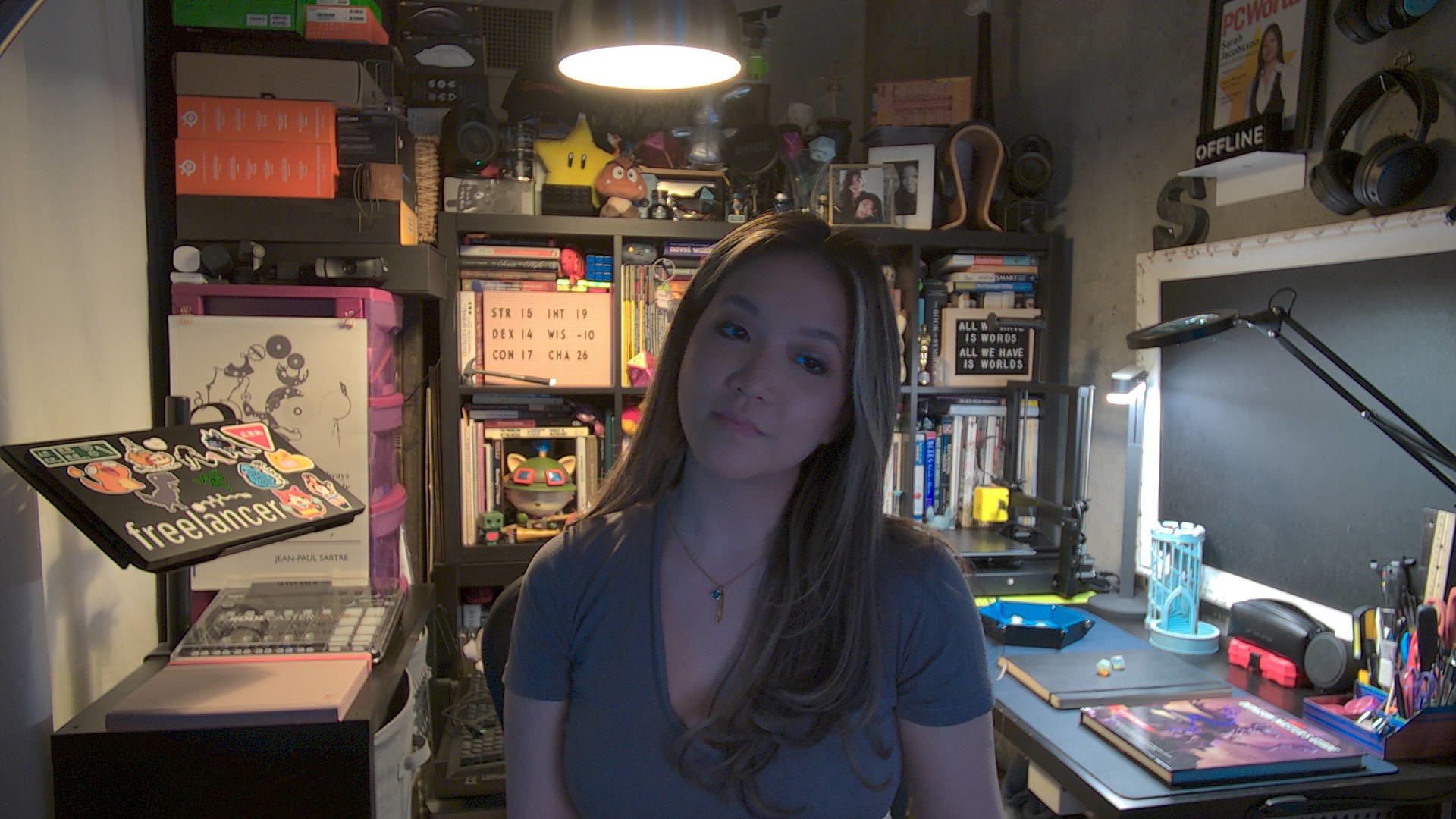
The Kiyo V2 X performed pretty poorly in this scenario, too. Not only was it unable to calibrate the light balance properly (resulting in a lot of blown out areas in the background), it also couldn't focus on me basically... at all. It did keep trying, however, which was frustrating, to say the least, especially as even the tiniest movement from me seemed to trigger it.
After many, many minutes of this constant auto-focus battle, it seemed to just give up, and stuck me with an extra-blurry image that focused on nothing. I tried to switch over to manual focus, which worked in Razer's Synapse 4 app... and only in Razer's Synapse 4 app. Switching to the Windows 11 camera app or Google Meet or Discord video chat caused the camera to switch back to auto-focus (or at least, that's what I think it did — either that, or manual focus isn't actually all that manual). I'm sure this could be fixed with a firmware update, but, well, Razer needs to make that firmware update.
Specs
Swipe to scroll horizontally
Resolution FPS | 1440p / 60 fps; 1080p / 60/30/24 fps; 720p / 60/30 fps |
Diagonal Field of View | 80-degree wide-angle |
Zoom | 4x |
Autofocus | Yes |
HDR | No |
Microphone | Yes (omni-directional) |
Connection | USB-A |
Mount | L-shaped monitor mount (non-detachable) |
Dimensions | 4.3 x 2.64 x 2.7 inches / 109 x 67 x 67.8 mm |
Weight | 5.64oz / 160g |
Software | Synapse 4 |
Special Features | N/A |
MSRP / Price at Time of Review | $99.99 |
Release Date | Oct. 2025 |
Features and Software
The Kiyo V2 X works about as well as you can expect right out of the box — though you will need to use Razer's universal peripheral software, Synapse 4, to update the webcam's firmware. You can also use it to adjust the camera's settings, though there's honestly not a ton that I'd recommend you change for the Kiyo V2 X (every setting I tried to tweak only made things worse, somehow).
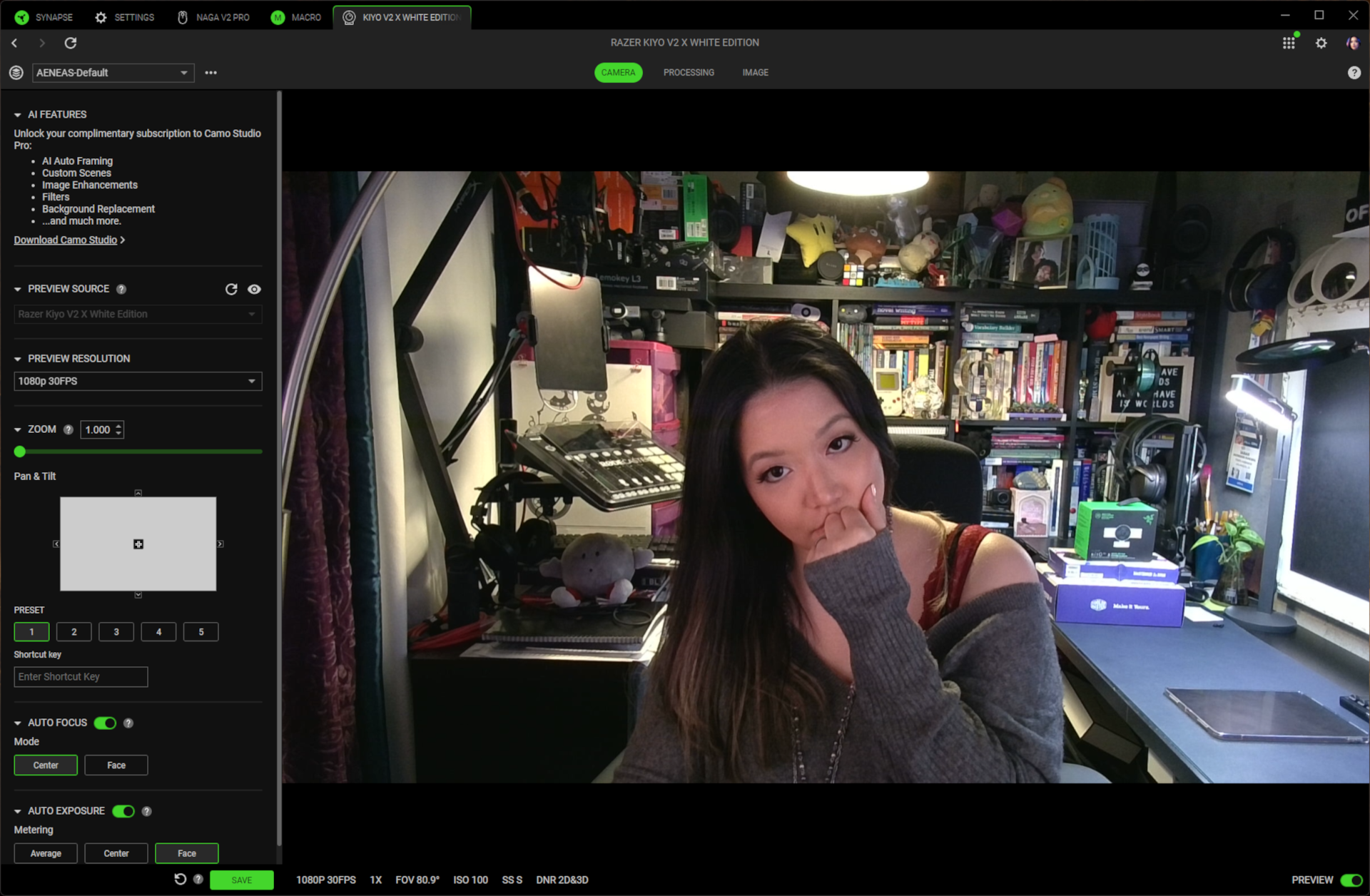
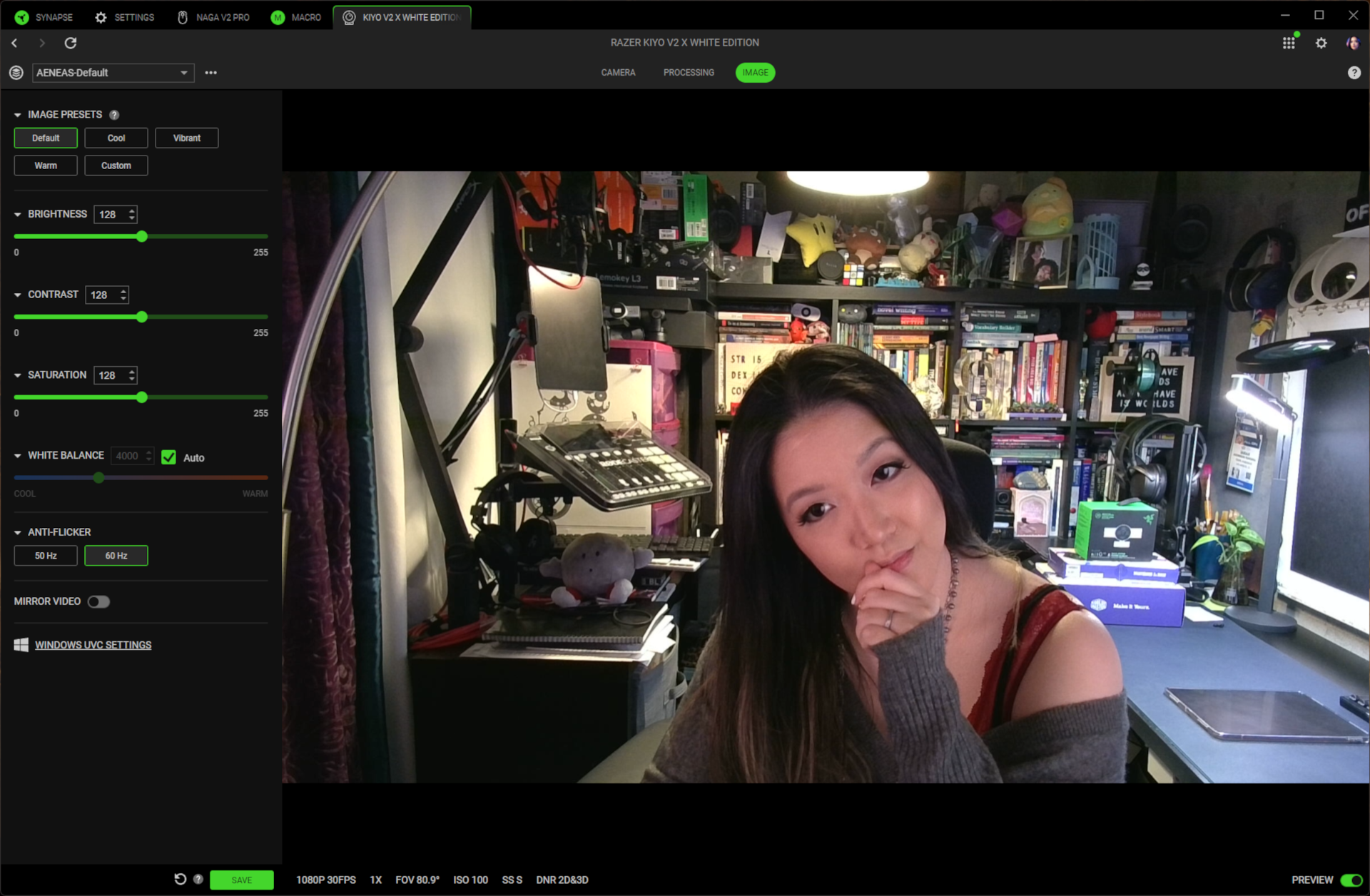
You can set up cropped "scenes" in Synapse 4 using the Kiyo V2 X's 4x digital zoom; this is handy for people who want to crop out the mess around them and/or set up multiple angles to switch between so they can look like newscasters in their work meetings. You can also turn off the Kiyo V2 X's trigger-happy auto-focus and manually focus the lens, but this didn't seem to work outside of Synapse 4 in my testing. Whenever I switched to a different app, even after saving the settings to the webcam multiple times, it was back to non-stop auto-focus.
There are also a handful of other standard settings in Synapse 4, such as auto/manual exposure, low light boost, 2D/3D noise reduction, and the standard picture adjustments (brightness, contrast, saturation, white balance, etc) — but I found the webcam's default settings ended up giving me the best overall picture. The Kiyo V2 X does not support HDR; you'll need to upgrade to the Kiyo V2 for that.
Bottom Line
The Kiyo V2 X is... sort of mediocre. It certainly looks good — like the Kiyo V2, anyway — and it works decently well out of the box in ideal lighting setups. I am a big fan of the built-in privacy shutter, and I think it's one of the best-implemented on the market (it's not creative at all, and other companies — such as Logitech — also do it, but that doesn't mean it's not still really good). But as soon as you're in any lighting situation that's not basically perfect, it goes a little crazy trying to compensate, to the point where it never actually manages to compensate. The auto-focus worked well in my well-lit scenario — it was quick and accurate, that is — but it was still easily triggered by tiny movements. This resulted in me being out of focus about half as often as I was in focus, because it was constantly recalibrating.
At $100, the Kiyo V2 X is the budget option in Razer's webcam lineup, but that doesn't necessarily make it budget-friendly. The Logitech Brio 500 retails for $30 more and only records at 1080p / 30 fps, but it'll make you look better, faster, and it also has a cleverly-implemented physical privacy shutter (plus, you shouldn't have too much trouble finding it on sale for around $100, if you're patient). The Elgato Facecam MK.2 records at 1080p / 60 fps and doesn't have a sexy privacy shutter (it does have one, just not a sexy one), but it's currently on sale for $100 at Elgato's website. And if you're looking for something that's actually budget-friendly, Elgato's Facecam Neo offers comparably solid performance for just $60.






 English (US) ·